I'm not a distro-hopper. Well, that's what I thought but I'm probably wrong (and nothing wrong with being a distro-hopper!). On my main system, I'm using
Slackware since its version 9 or 10. However, on my laptop (HP Pavilion dm3-1130us), I tried
RHCE,
Fedora,
Xubuntu,
Mint,
CrunchBang,
Arch, and
FreeBSD.
Each distro had its pros and cons but it didn't really stick to me. I liked FreeBSD the best among them but it drained the battery and heated up my laptop compared to other distros. Also I couldn't get some of hardware components (ex: built-in webcam) working. I believe FreeBSD is an excellent OS for servers but probably not for laptops so much. So, I was in a quest for another distro again and decided to try on
Debian.
Disclaimer:
The information in this site is the result of my researches in the Internet and of my experiences. It is solely used for my purpose and may not be suitable for others. I will NOT take any responsibility of end result after following these steps (although I will try to help if you send me your questions/problems).
Now onto Debian. As other distributions, I wanted to try encrypted disk/filesystem(s) for my laptop. After a bit of research, I came across to
this article. Interesting. My laptop doesn't have a CD/DVD drive, either, but I never thought of having a recovery partition in case of emergency. So I decided to give it a try with this method. Since this article is a bit outdated, I'll describe it with most recent version of Debian (Wheezy) and add some steps.
1. Creating Bootable USB Stick
Download the
netinst.iso image from Debian
website and create a bootable USB stick.
# dd if=debian-7.5-0-amd64-netinst.iso of=/dev/sdX
2. Setting Up Recovery System
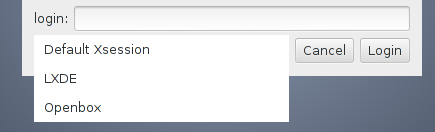
Start the Debian installer. Since I love OpenBox, I select below options for the installation.
Advanced options -> Alternative desktop environments -> LXDE -> Graphical install
Follow the installer until you get to set the hostname. I set it as
debianrecov for recovery.
Follow it until you get to "Partition disks" and select
Manual. Here is the partition scheme to use:
Choose
Finish partitioning and write changes to disk. It'll then warn you that there is no partition for swap space and ask you whether to return to the partition menu. Just select
No and follow the rest of the installation.
Reboot your system and make sure it boots up without any issues.
3. Setting Up Main System
Now boot the Debian installer again. Select the same options for the installation and follow it until you get to "Partition disks". Select
Manual.
Select the main partition and hit the Continue button. Then choose
physical volume for encryption for "Use as:".

Select "Done setting up the partition".
Next select "Configure encrypted volumes". Then "Create encrypted volumes" and choose the main partition. After selecting "Yes" for erasing data on the partition, it'll start randomizing it. This will take very long time (on my laptop, it took more than 10 hours).
When it's done, it'll ask for a passphrase. This is the phrase you type at every boot and it is not recoverable so don't forget it!
Select the contents of the "disk" Encrypted volume and

Next, select
physical volume for LVM for "Use as:" and choose "Done setting up the partition".
Then select
Configure the Logical Volume Manager and create a Volume Group. The original article uses the hostname for the Volume Group to reduce confusion if the disk is plugged into another machine for disaster recovery. I think that's a great idea.
Create a Logical Volume called swap. If you plan to use suspend-to-disk, this needs to be at least as large as your RAM.
Create a Logical Volume called root.
Set the swap Logical Volume you just created to be used as a swap area and your root Logical Volume to be used as ext4 mounted at "/".
Also set your recovery partition to be used as ext4, mounted on "/boot", and the format partition option to "no, keep existing data".
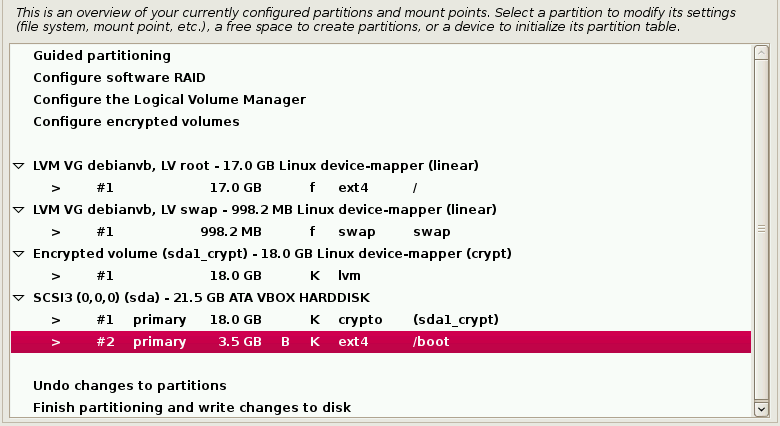
This is how the partition layout looks like:

Proceed with the rest of the installation and reboot the system when it's done.
4. Making Them Dual-boot
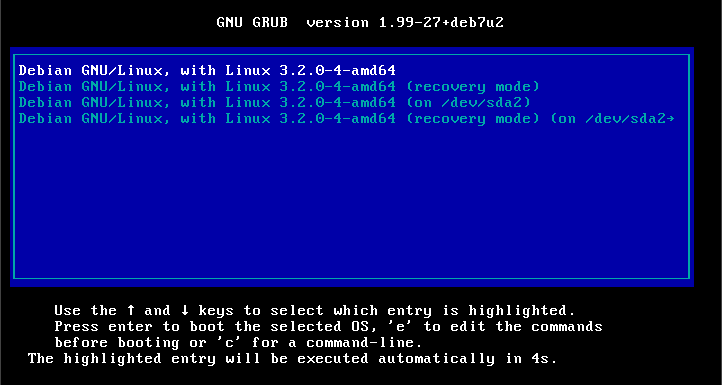
In the original article, it now talks about setting up dual-boot. Debian Wheezy uses GRUB2 and menu.lst is no longer available. However, it should automatically detect your recovery system and it should look like below during GRUB menu:

If your recovery system is missing, you could try running the update-grub2 command in your main system:
# update-grub2
Generating grub.cfg ...
Found linux image: /boot/vmlinuz-3.2.0-4-amd64
Found initrd image: /boot/initrd.img-3.2.0-4-amd64
Found Debian GNU/Linux (7.5) on /dev/sda2
done
If
update-grub2 did not work, make sure that the recovery partition was set to be ext4, mounted on "/boot", and the format partition option was set to "no, keep existing data" at the end of Step 3 above.
Tomorrow, I'll talk about
accessing main system's area from recovery system.
That's all!
-gibb